 Walkthrough
Open the outline editor
Select a photo in the job and choose Outline Property from the Photos menu or Command-K. The shortcut is ⇧⌘O. The editor works on a copy of your JPG or JPEG; opening it does not change the source file.
Draw and adjust the boundary
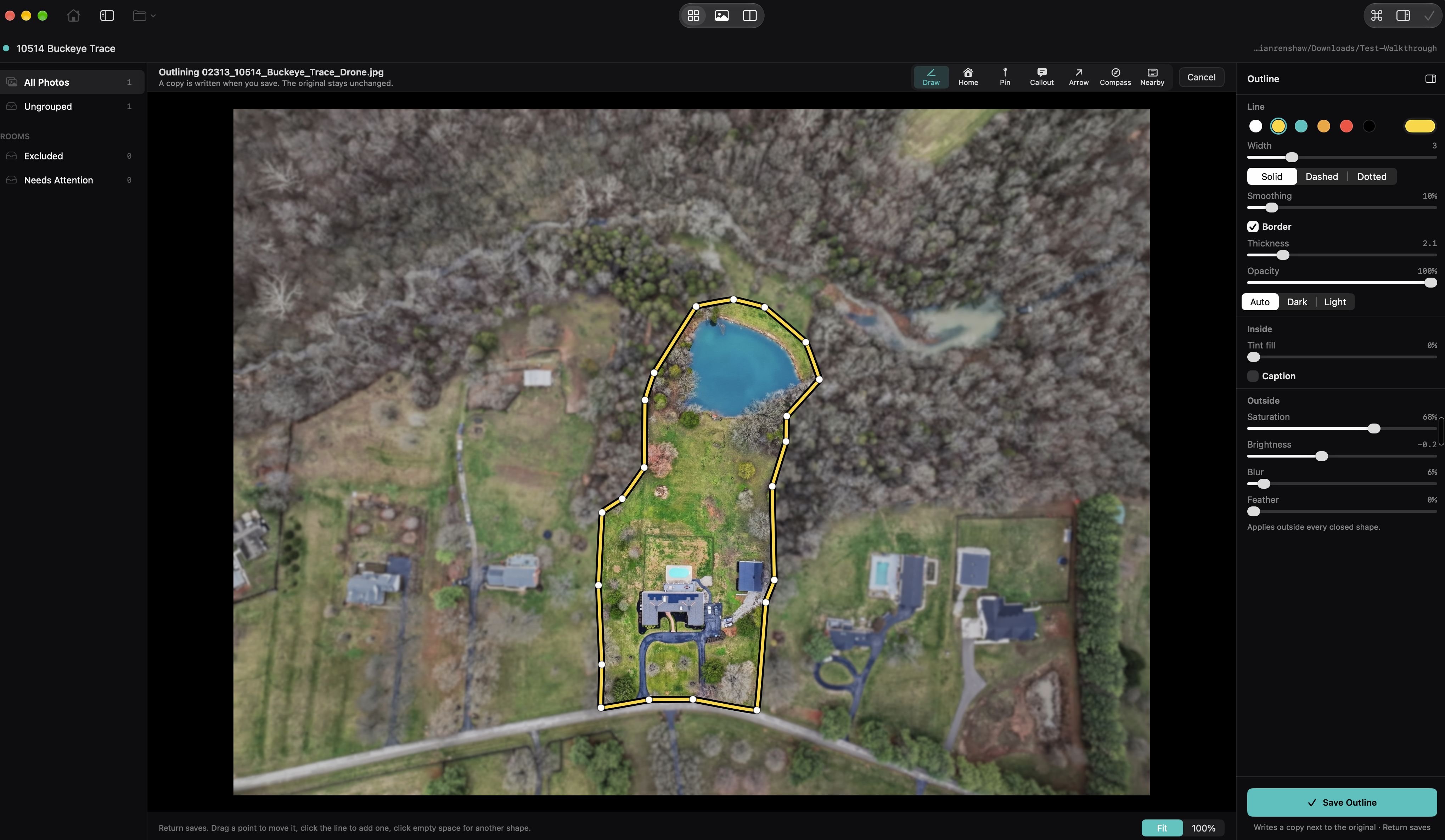
- With Draw selected, click around the property to place points. Use Option-click for a sharp corner.
- Click the first point to close the shape. A closed shape lets you treat the area inside and outside separately.
- Drag points to adjust the line. Click a line to add a point. Select a point and press Delete to remove it, or use the arrow keys to nudge it.
- Use Command-Z to undo an edit. Start another shape to mark a separate area; Shift-Return finishes an open line.
Choose Fit or 100% to inspect the photo. The line is drawn by you; Walkthrough does not look up or verify parcel boundaries.
Style the outline
The inspector controls line color, width, solid or dashed styles, smoothing, and a contrasting border. Add a tint inside closed shapes. Outside controls adjust saturation, brightness, blur, and feathering around the boundary.
Turn on Caption to add “Property lines are approximate,” or edit that text. Keep the caption and your drawing appropriate to the information you have about the property.
Save and edit again
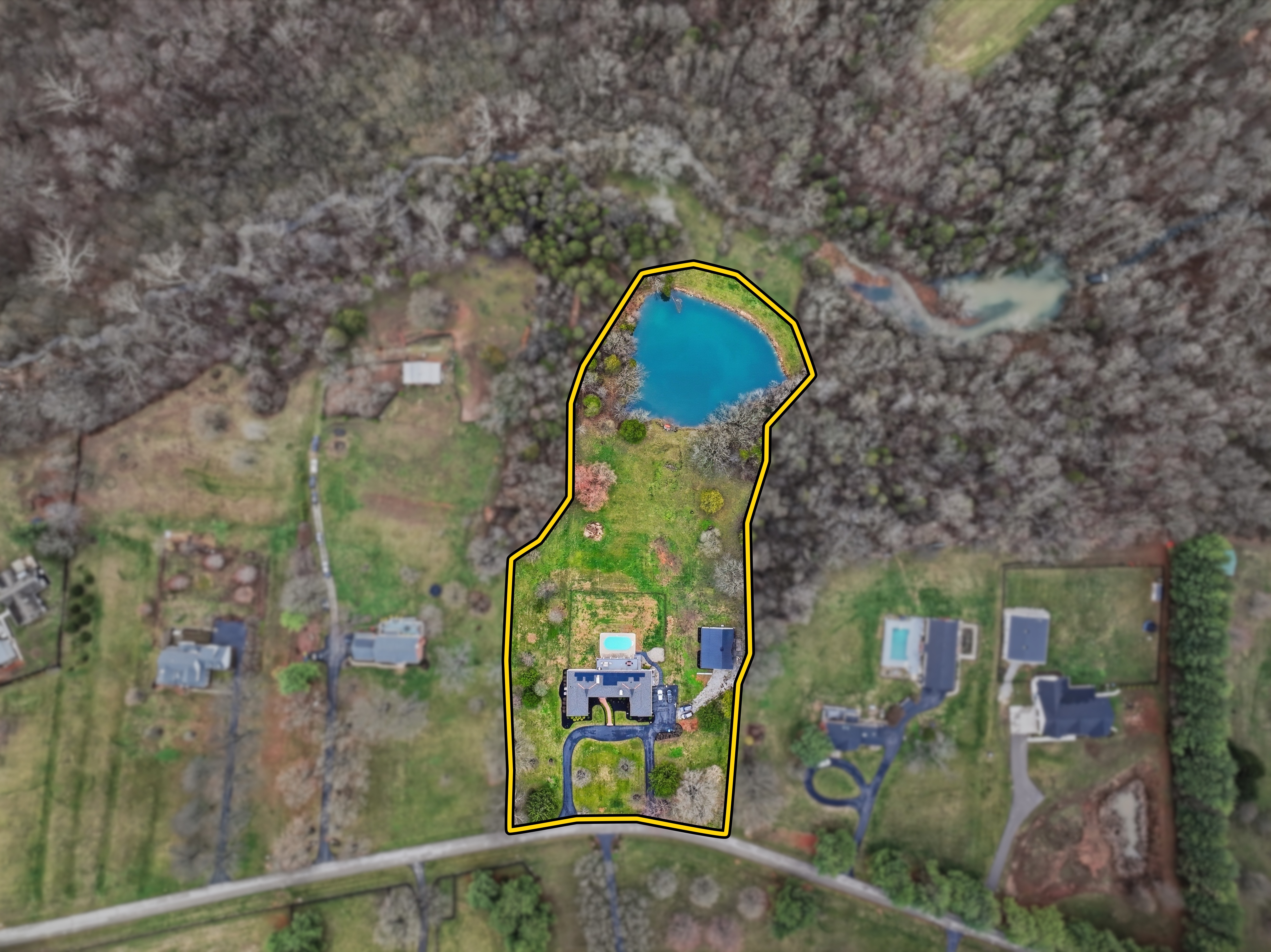
Choose Save Outline to render a new JPG beside the source photo. Walkthrough adds it to the job after the original. Both remain included, so use Exclude from Job on the original if you only want to deliver the outlined version.
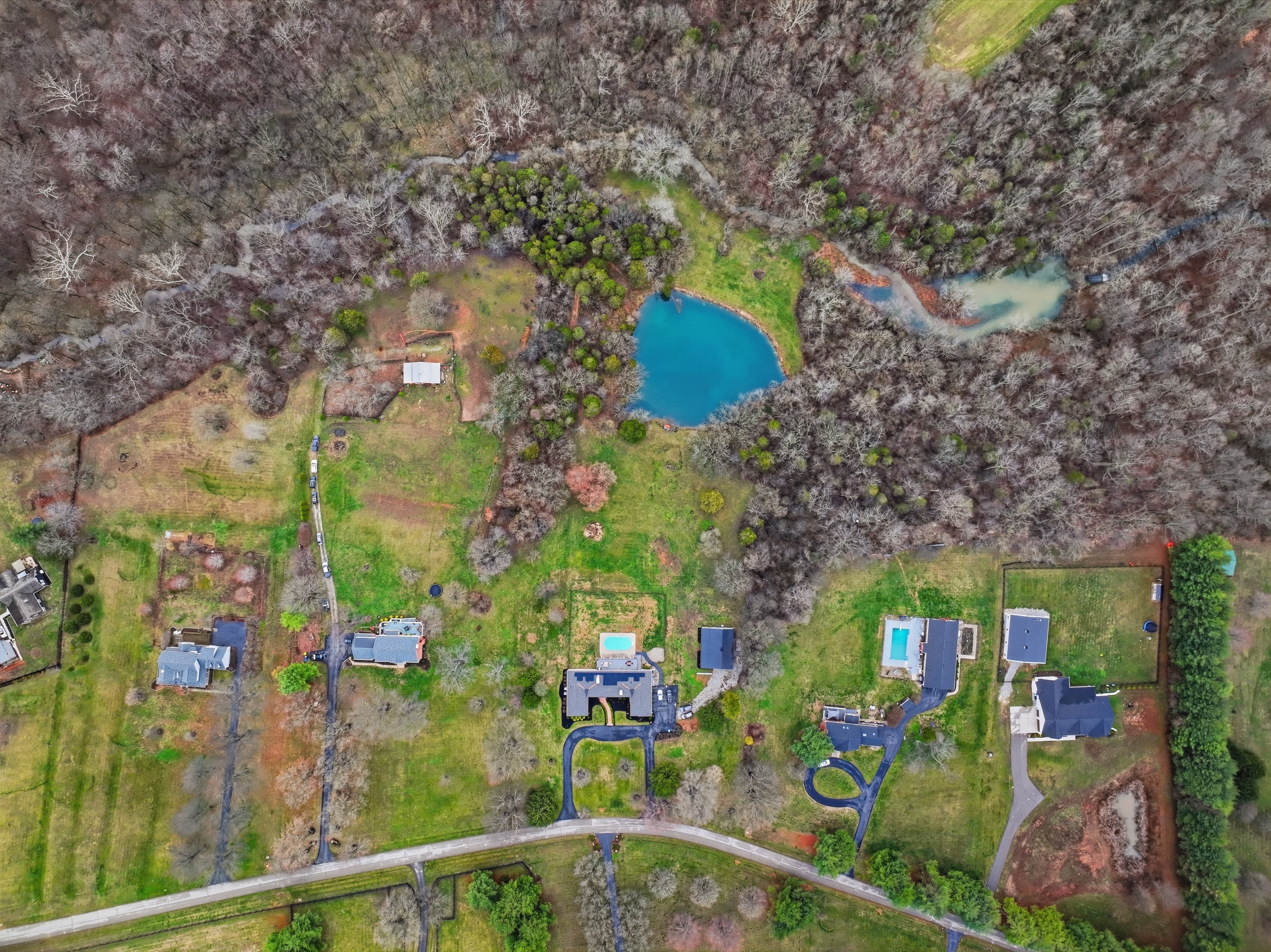
Select the outlined copy and choose Edit Outline to reopen its saved points and styles. Saving again rewrites that copy from the original image. Keep the original file and this Mac’s saved job available for re-editing. The original image remains unchanged. If Edit Outline reports that the original is no longer in the job, include the source photo from Excluded before reopening the outline.
You can also add markers or place a nearby-places card before saving.