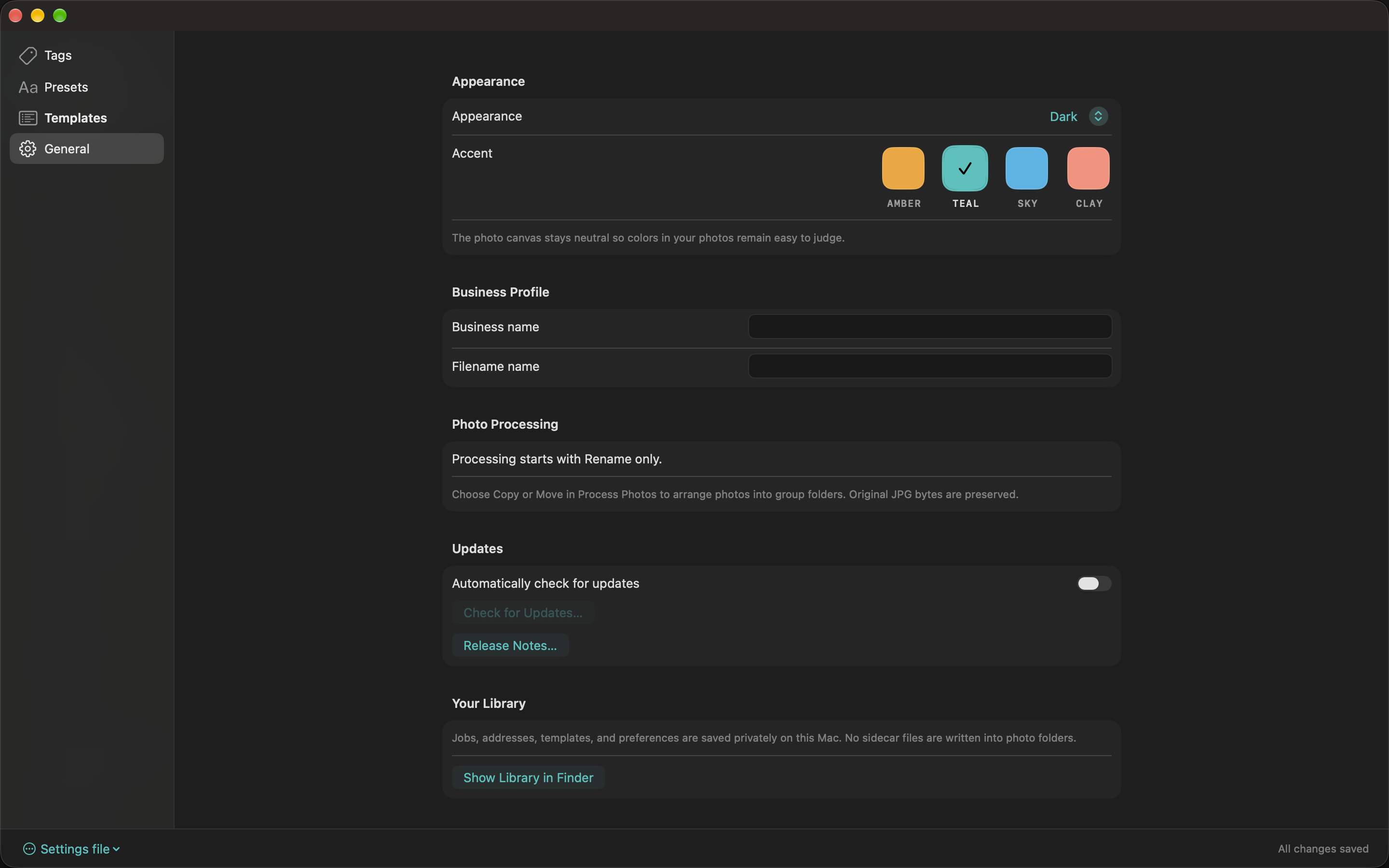
General: appearance, business, updates, and library
Change appearance, business details, update preferences, and library settings.
Appearance
Choose System, Light, or Dark. New installations use System; existing choices are preserved. This applies immediately. System follows your Mac’s appearance. Teal is the default accent; Amber, Sky, and Clay are also available. The photo canvas stays dark in each appearance so image colors remain easy to judge. Reduce Motion, Reduce Transparency, and increased contrast are respected where applicable.
Business
Set your Business name and an optional Filename name. The shorter filename value is used by the Business naming block when it contains usable text; otherwise the business name is used. These edits save automatically. Applying a preset or template and reopening a job uses your current saved business profile. If the Business block has no usable name, the filename preview explains where to add one.
Photo Processing
Processing starts with Rename only. Choose Copy or Move in Process Photos; there is no default-copy preference to save.
Updates
Choose whether to check automatically, check manually, or open release notes. Update preferences apply immediately.
Library
Show Library in Finder opens the local app-data folder. Job history lives on this Mac; there are no sidecar job files or account requirements. Photos remain in the folders you choose.
Choose your appearance and business profile in General. Changes save automatically. Select the image to view it full size.
Guide for Walkthrough 1.4.2 · Updated October 6, 2026. Screenshots use demonstration data with repeated photographs.
 Walkthrough