 Walkthrough
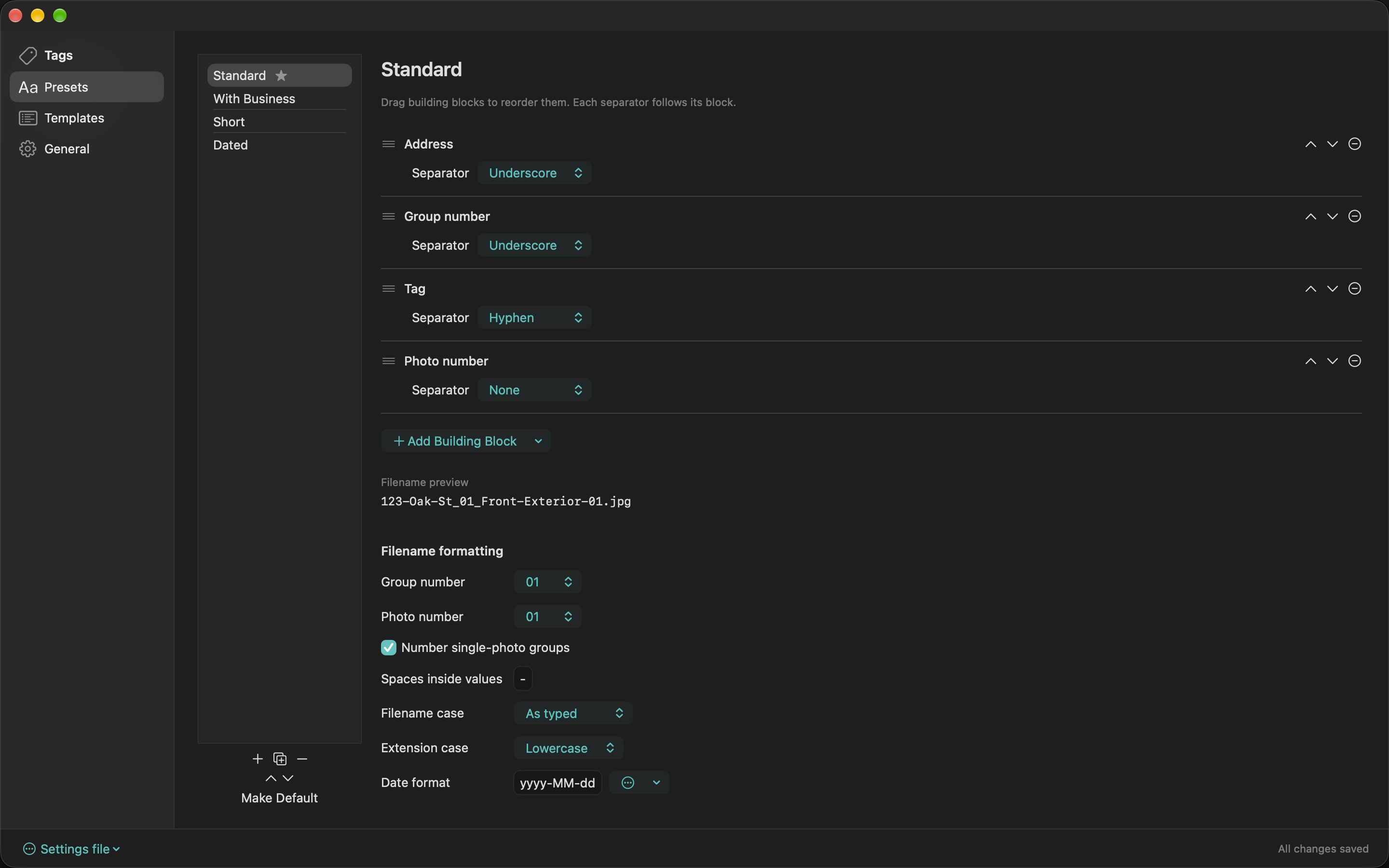
A naming preset defines the filename recipe. Select a preset to edit it; use the list controls to add, duplicate, delete, or reorder presets. At least one preset must remain. Make Default chooses the preset for new jobs. The first nine presets in list order are available with Command-1 through Command-9.
Each building block has its own row, with room for its value and separator. Drag rows or use the up/down controls to reorder them, remove unneeded blocks, and add new ones. Each block’s separator follows that block: underscore, hyphen, period, space, none, or custom text. Empty values omit their following separator too.
- Business
- Uses Filename name from General when supplied; otherwise uses Business name.
- Address, Unit, City, State, ZIP
- Use the listing information from the current job. Unit is a separate building block.
- Template
- Includes the applied template’s name.
- Shoot Date
- Uses the job’s shoot date and the preset’s date format.
- Group Number, Tag, Photo Number
- Include the group position, group name, and photo position within the group.
- Original
- Uses the original camera filename without its extension.
- Custom Text
- Adds a fixed label that you supply.
Number padding: choose 1, 01, or 001 independently for group and photo numbers. Enable numbering for single-photo groups if you want their filenames to include a photo number too.
Text formatting: choose the replacement for spaces, filename case (as typed, title, lower, or upper), and extension case (keep, lower, or upper). Date formats include yyyy-MM-dd, MM-dd-yy, and yyyyMMdd; use the preview to check a custom format.
The Standard pattern produces names such as 123-Oak-St_01_Entry-02.jpg. Leading zeros preserve numeric sequence when files are sorted by name. In the inspector, Edit Filename Format changes the job’s format; use Update Preset or Save as New when you want a reusable library preset.