 Walkthrough
Press E, ⇧⌘E, or choose Process in the toolbar. The pinned Process X Photos inspector button opens the same review. Process Photos includes active photos in the entire job, regardless of the selected room or photos. Excluded and Needs Attention photos stay out until you include or retry them. Review opens with Rename only every time and applies the current filename preset in all three modes. The Current path and Destination path table has resizable columns; hover over a truncated path to see it in full.
- Rename only: changes filenames inside each photo’s current directory. It does not relocate photos or rename existing folders.
- Copy: writes the named photos to the selected output location and keeps source files. The open job follows the new copies.
- Move: relocates the photos to the selected output location. The open job follows the moved files.
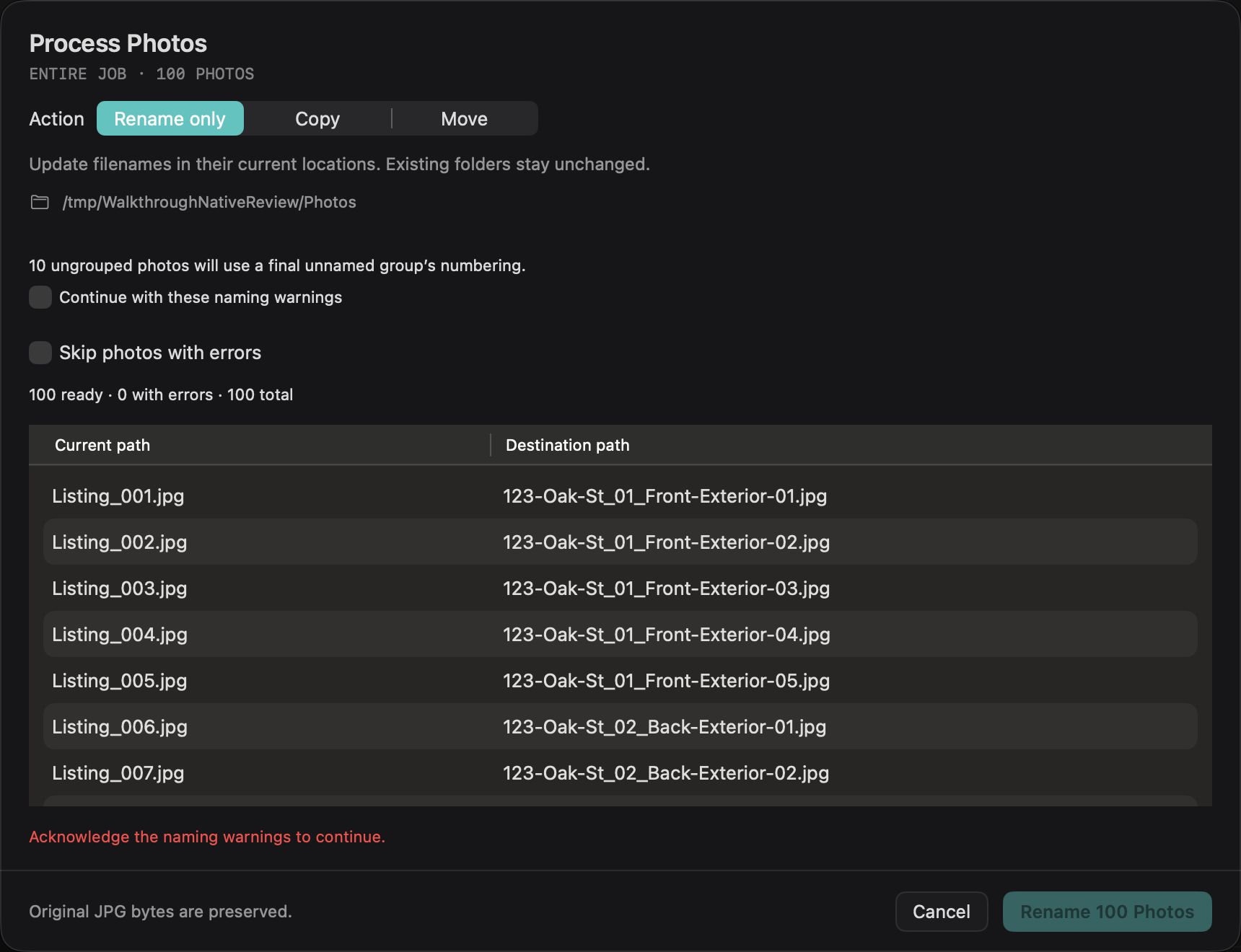
Choose a location and folder layout
Copy and Move offer Current folder or Another folder, followed by Choose Destination. Create folders from groups starts enabled. Group folders sit directly below the destination, for example 01 Front Exterior and 02 Living Room. Ungrouped photos come last; unnamed groups use Group. Number prefixes distinguish identically named groups, and padding expands for larger group counts.
Turn Create folders from groups off for a flat output. After an earlier grouped operation, Rename only keeps each photo in its existing directory; use Copy or Move with a flat layout to bring the output together.
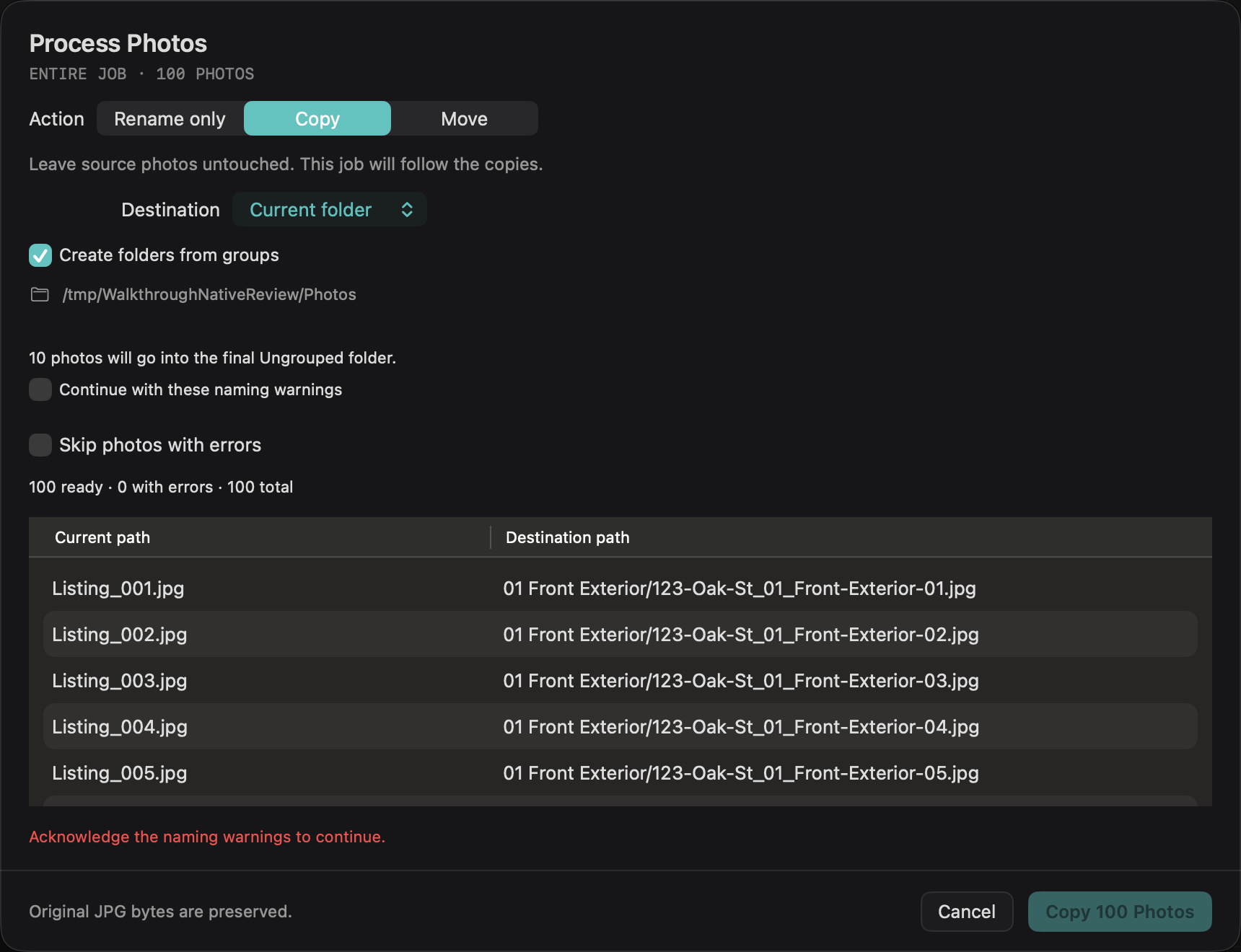
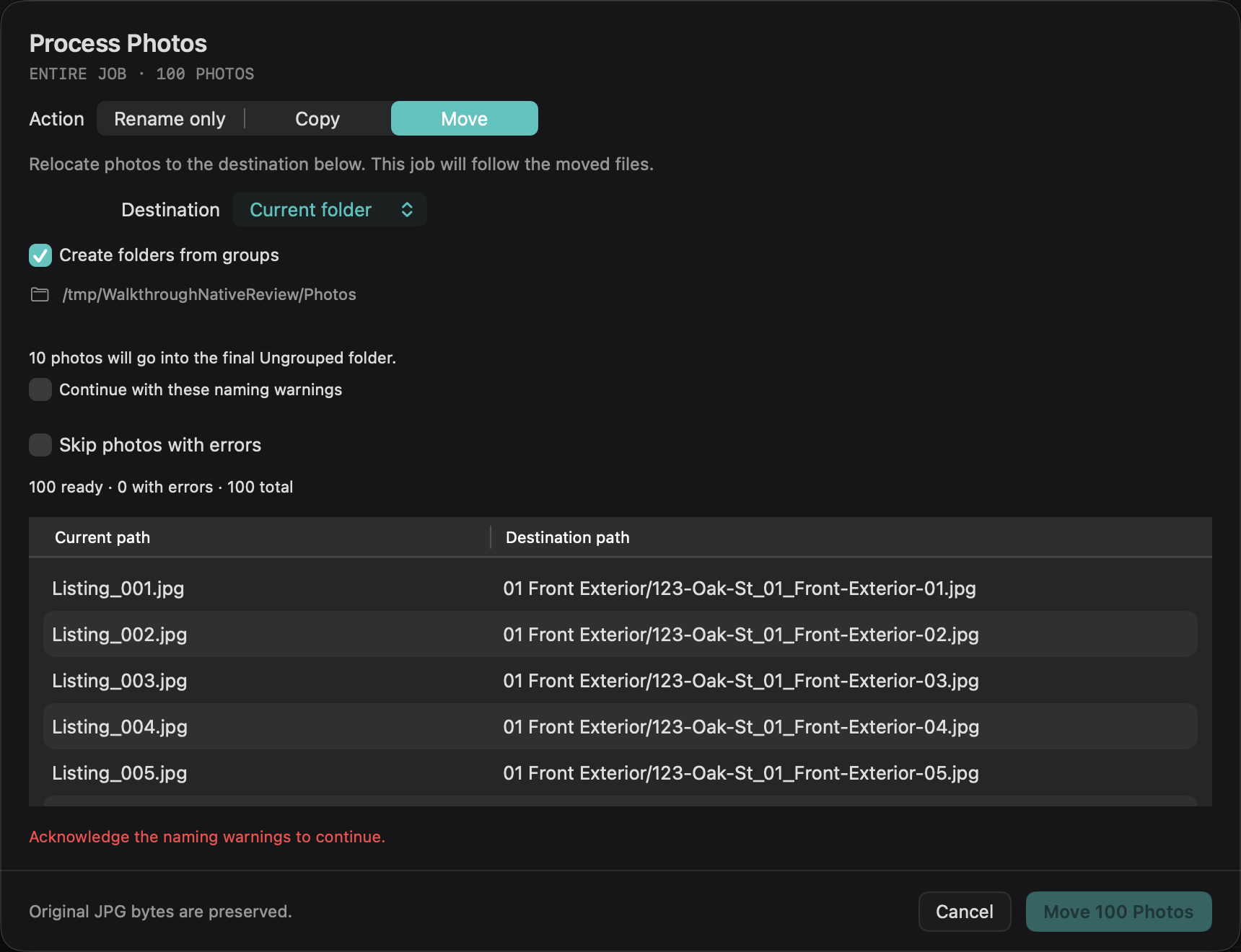
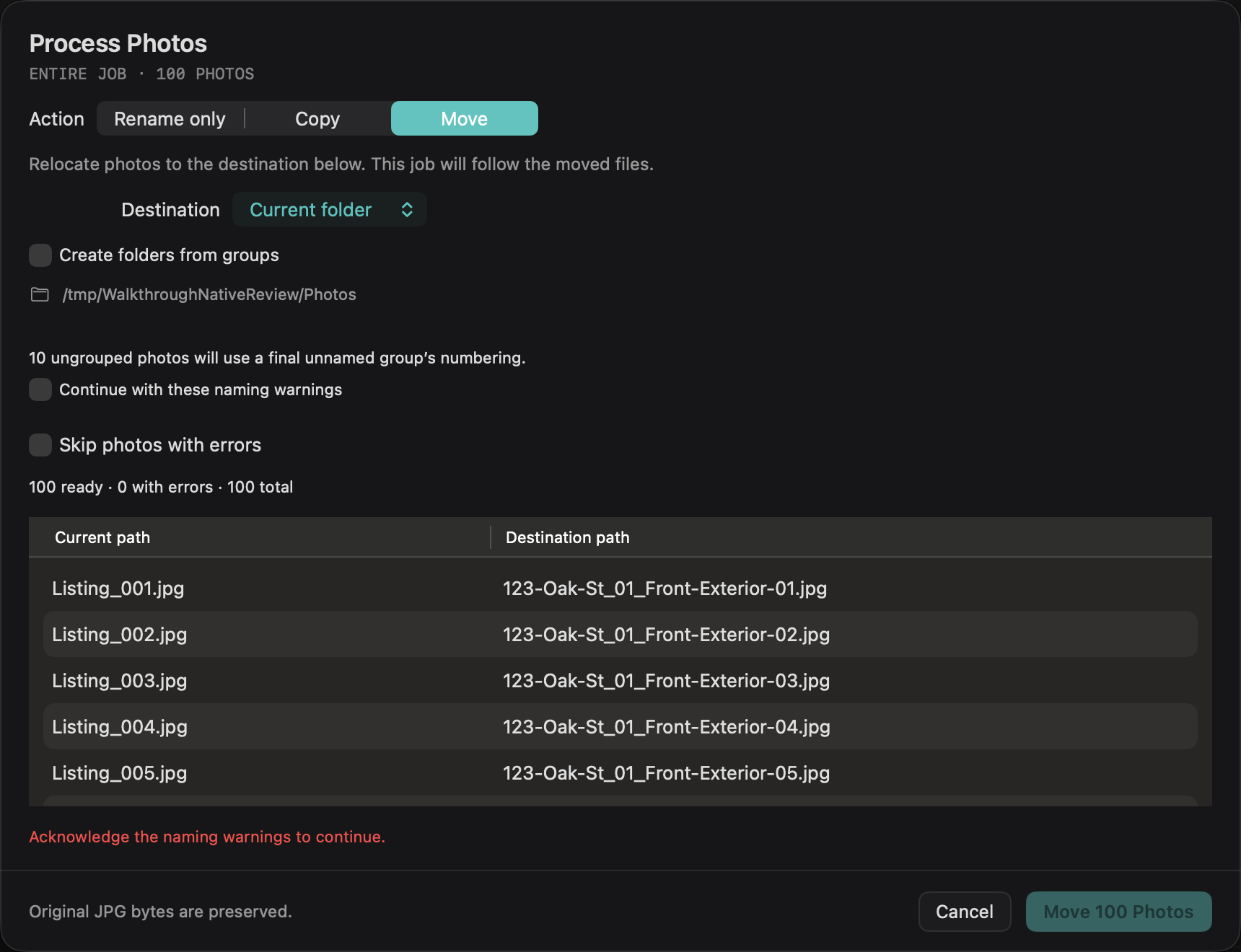
Review before writing
Check the ready, skipped, and total counts and every output path. Continue with these naming warnings acknowledges missing listing details or unnamed/ungrouped photos. It does not resolve file errors.
Skip photos with errors starts unchecked. Enable it to process eligible photos while skipping missing, unreadable, or replaced sources, invalid names, and destination conflicts. Every photo involved in a duplicate destination is skipped. At least one photo must be ready, naming warnings must be acknowledged, and the destination folder must be available. The dialog explains why processing is disabled.
Walkthrough never overwrites existing files or silently adds suffixes. Skipped photos keep the names and numbering shown in the preview, so gaps are possible. JPG bytes are preserved; processing does not re-encode images.
Follow processing progress
The confirmation button includes the number of photos, such as Rename 100 Photos. After you confirm, the review sheet closes and the workspace shows two progress bands: photos staged and photos written under their final names.
Finish and retry skipped photos
The result reports processed and skipped counts with filenames and reasons. Choose Needs Attention in the sidebar, fix the source or destination issue, refresh, select the failed photos, and choose Retry Selected. Review their retained destinations before retrying; successful retries return to the active job and their original group where possible.
After a partial Copy or Move, the job follows the successfully processed files while failed photos keep their original locations. If nothing succeeds, the active folder stays unchanged. Missing Needs Attention records remain available to retry. If a retained target belongs to a previous job folder, Include in Job brings the photo into the current folder for a fresh processing run.
Review grouping, ordering, and naming with Undo before processing. A completed operation clears workspace undo history; Command-Z does not reverse a completed filesystem operation. Sort delivered files by name and check their final order in the MLS or website after upload.