 Walkthrough
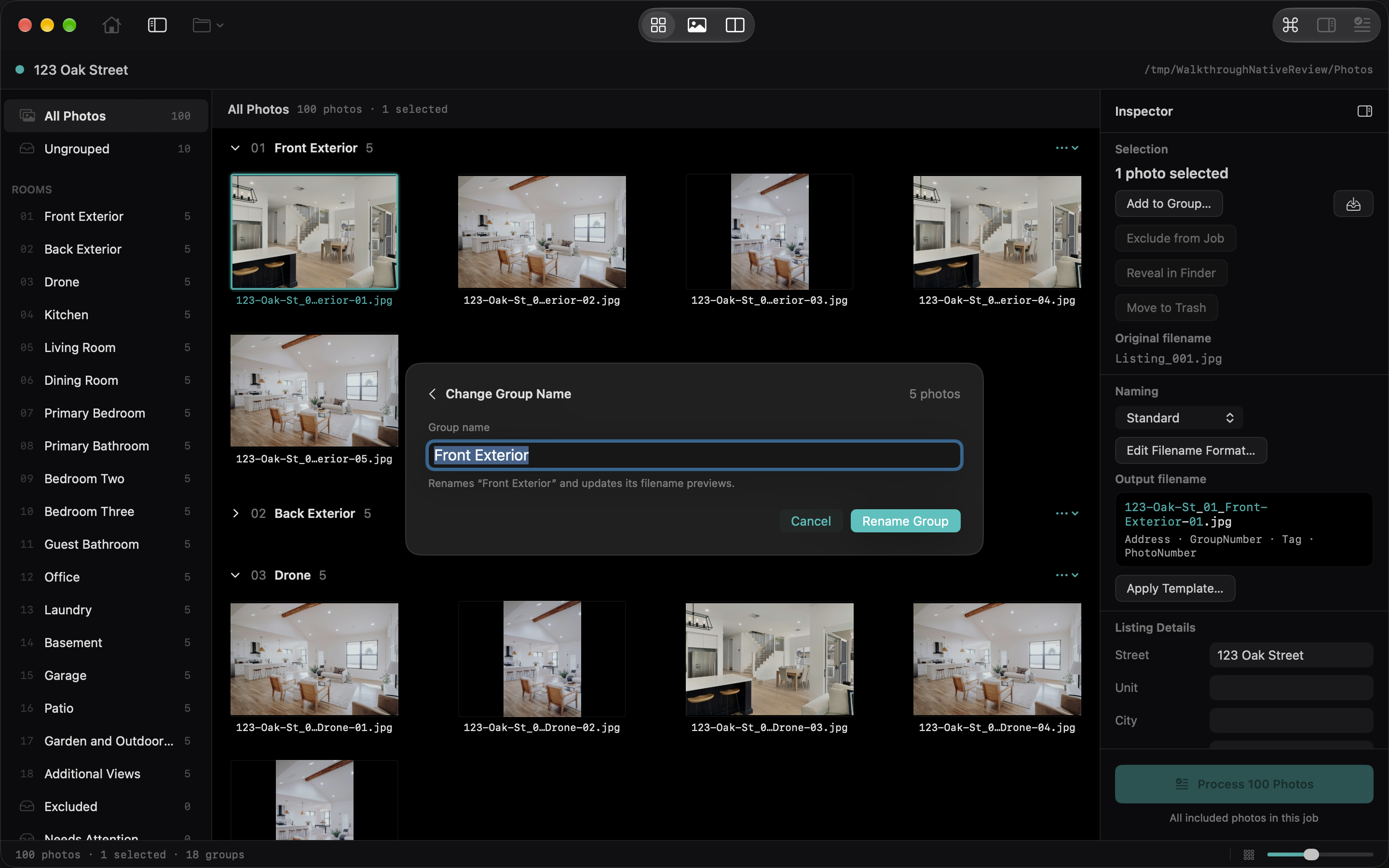
- Select a photo in the group you want to rename, or select the room in the sidebar.
- Press ⌘K and type change group name or rename group.
- Choose Change Group Name. The current name is filled in.
- Type the new name and press Return or choose Rename Group.
For example, select a Garage photo, open the command, and enter Outside Garage. The room label and filename previews update together. Photos keep their order and stay in that group. The files on disk change when you process.
Escape or Cancel leaves the name unchanged; Command-Z undoes a completed rename. If your selection spans more than one group, select photos from one group first. Double-clicking a room name or choosing Rename Room from its context menu also works. This changes the current job’s group name, not the reusable tag in Settings.