 Ingest
Ingest / Shortcuts
Every key, and how to change it.
The whole keyboard, grouped the way the app groups it. Nine keys are fixed because they move you around. Everything else you can rebind.
How to read this
⌘ is Command, ⌥ is Option, ⌃ is Control, and ⇧ is Shift. A key written on its own, like T, is pressed on its own.
Some keys mean different things depending on where you are. There are three places: the grid of thumbnails, the large preview, and a video playing in the preview. Where a key only works in some of them, the table says so. Everything else works anywhere.
Single letters pause whenever you are typing. If the cursor is in the keyword field, T types a letter t. Press Esc to leave the field and the keys come back.
A command that cannot run right now does not fail quietly. It beeps and the status bar says why, for example that nothing is tagged, or that the source is read only.
Keys that never change
These move you around and open things, so they are not available for rebinding. Settings lists them too, so nothing about the keyboard is hidden.
| Keys | What they do |
|---|---|
| ← → ↑ ↓ | Move between photographs. Hold ⇧ to extend the selection, hold ⌘ to move the focus without changing the selection. |
| Space | Open or close the preview. On a video, play or pause. |
| ↩ | Open or close the preview. |
| Esc | Leave Compare, then leave the preview. In a text field, leave the field. |
| Tab | Hide or show both side panels at once. |
| ⌥Tab | Next split. ⌥⇧Tab goes back. |
| Home End | First and last photograph. |
| Page Up Page Down | Previous and next photograph. |
| J K L , . M | In a video: shuttle back, play or pause, shuttle forward, step a frame back, step a frame forward, mute. |
Marking
By default a marking key acts where you are and does not move on. Turn on advancing in Settings, Culling, and then holding ⇧ does the opposite for one press. The command names in the app flip to match, so the menu always tells the truth.
| Keys | Command | Where |
|---|---|---|
| T | Tag | Grid, preview, video |
| ⇧T | Tag and advance, or tag without advancing | Grid, preview, video |
| U | Untag | Grid, preview, video |
| X | Reject | Grid, preview, video |
| ⇧X | Reject and advance, or reject without advancing | Grid, preview, video |
| 1 … 5 | One star to five stars. Pressing the rating it already has clears it. | Grid, preview |
| ⇧1 … ⇧5 | The same, with the opposite advance behaviour | Grid, preview |
| 0 | Clear the rating | Grid, preview |
| 6 7 8 9 | Label red, yellow, green, blue. The Lightroom keys and the Lightroom names. | Grid, preview |
| ⇧6 … ⇧9 | The same, with the opposite advance behaviour | Grid, preview |
| ⌥9 | Label purple | Grid, preview |
| ⌥0 | Clear the label | Grid, preview |
| no key | Clear all tags, with a confirmation |
A mark applies to every selected photograph, or to the one under the focus ring. On a collapsed bracket stack it applies to every frame in the stack.
Views and overlays
| Keys | Command | Where |
|---|---|---|
| ⌘1 ⌘2 ⌘3 | Grid, preview, split | |
| Space | Toggle the preview | Grid, preview |
| ⌘I | Show or hide the inspector | |
| ⌥⌘S | Show or hide the sources list | |
| Tab | Hide or show both side panels | |
| C | Compare two photographs side by side | Grid, preview |
| N | Survey up to four at once | Grid, preview |
| I | Cycle the information overlay: off, compact, full | Preview |
| ⌥D | Detail overlay, to judge sharpness | Preview |
| ⌥E | Edge overlay | Preview |
| ⌥A | Show the focus point the camera recorded, when it recorded one | Preview |
| ⌥F | Face close-ups along the bottom | Preview |
| ⌘+ ⌘- | Bigger and smaller thumbnails | Grid |
| ⌃⌘F | Full screen | |
| ⌥⌘F | Put the preview on a second display | |
| ⌥⌘J | Combine RAW and JPEG pairs into one photograph, for this folder | |
| ⌥⌘K | Stack bracket sets, for this folder | |
| ⌃1 … ⌃9 | Switch to a workspace | |
| no key | Sort by capture time, or by filename |
Zoom
All of these work in the preview. Zoom is anchored on the pointer, so the detail under the cursor stays under the cursor.
| Keys | Command |
|---|---|
| Z | Switch between fit and 100 per cent at the pointer |
| F | Fit to the window |
| ⌥1 ⌥2 ⌥4 | 100, 200, and 400 per cent |
| ⇧Z | Lock or free the zoom across Compare panes |
A pinch on the trackpad zooms around your fingers, a two finger drag pans, and a two finger double tap does what Z does. In the grid, a pinch resizes the thumbnails.
Selecting and filtering
| Keys | Command |
|---|---|
| ⌘A | Select all |
| ⌥⌘A | Deselect all |
| ⇧⌘I | Invert the selection |
| ⌘T | Select everything tagged |
| ⇧⌘T | Show only what is tagged |
| ⌥⌘X | Hide rejects, or show them again |
| ⇧⌘1 … ⇧⌘5 | Show only photographs rated that many stars or more |
| ⇧⌘0 | Clear the star filter |
| ⌘F | Put the cursor in the filter field |
| ⌥Tab ⌥⇧Tab | Next and previous split |
| ⇧⌘S | Save the current filter as a split |
Selection follows the Finder. Click to select, ⌘ click to add or remove one, ⇧ click to take a range. ⌘ with an arrow key moves the focus ring without changing what is selected, which is how you reach past a selection without losing it.
Stacks
| Keys | Command | Where |
|---|---|---|
| S | Expand or collapse the stack you are on | Grid, preview |
| ⌥S | Expand or collapse every stack | |
| no key | Combine the selected photographs into a stack. With nothing selected, it puts back the stacks you took apart in this view. | |
| no key | Uncombine. Stacks in the selection, or the one you are on, or every stack in this view. |
Metadata
| Keys | Command | Where |
|---|---|---|
| Q | Quick entry. One line that can set keywords, a rating, a label, a caption, a location, and a preset at once. | Grid, preview |
| K | Put the cursor in the keyword field | Grid, preview |
| ⇧K | Take back the keywords you just added | Grid, preview |
| ⇧C | Put the cursor in the caption field | Grid, preview |
| M | Choose a metadata preset to apply | Grid, preview |
| ⇧⌘M | Apply the preset you used last | |
| ⌘L | Search for an address and set the location | |
| ⇧⌘L | Strip the location back out | |
| ⌥⌘[ ⌥⌘] | Rotate left and right, by changing the orientation flag rather than the pixels | |
| ⌥⌘T | Adjust capture time, for when two cameras disagree about the clock | |
| no key | Apply the current location to the selection, to everything tagged, or to everything |
The quick entry syntax is on the templates page.
Files and ingest
| Keys | Command |
|---|---|
| ⌘O | Open a folder |
| ⌘G | Ingest |
| ⌘Y | Copy to a folder, without the rest of the ingest machinery |
| ⌘R | Rename photographs where they are |
| ⌥⌘R | Re-sequence what is shown, so the numbers have no gaps after a cull |
| ⇧⌘⌫ | Empty rejects |
| ⇧⌘R | Reveal in Finder |
| ⇧⌘F | Search this Mac, using Spotlight, and browse the results like a folder |
| ⌘Z ⇧⌘Z | Undo and redo |
| no key | Close the source |
Video
These work while a video is open in the preview, and they take precedence over the letters they share.
| Keys | Command |
|---|---|
| Space or K | Play or pause |
| J L | Shuttle backwards and forwards, faster each press |
| , . | Step one frame back and forward |
| ← → | Step a frame. Hold ⇧ to jump seconds. |
| M | Mute |
| ↑ ↓ | Move to the previous or next item, so a video never traps you |
Cards and folders
| Keys | Command |
|---|---|
| ⌘E | Eject the card |
| ⌘D | Add the open folder to your favourites |
| ⌃⌘1 … ⌃⌘9 | Open favourite one to nine |
| ⌘1 … ⌘9 | Inside the Ingest sheet, choose the destination. ⌥⌘1 to ⌥⌘9 chooses the second destination. |
| ⌃1 … ⌃4 | Inside the Ingest sheet, choose what to ingest: tagged, selected, shown, or all |
| no key | Delete tagged, or untagged, from the card, after the copies verified |
App
| Keys | Command |
|---|---|
| ⌘K | The command palette |
| ? | The shortcut sheet |
| hold ⌘ | An overlay of the keys that work where you are |
| ⌘, | Settings |
| no key | Open the practice folder, to drill the keys on throwaway images |
Changing a key
Open Settings, then Shortcuts. Every command is listed with its key. Click the key and press the one you want. Esc cancels, and Delete removes the key so the command has none.
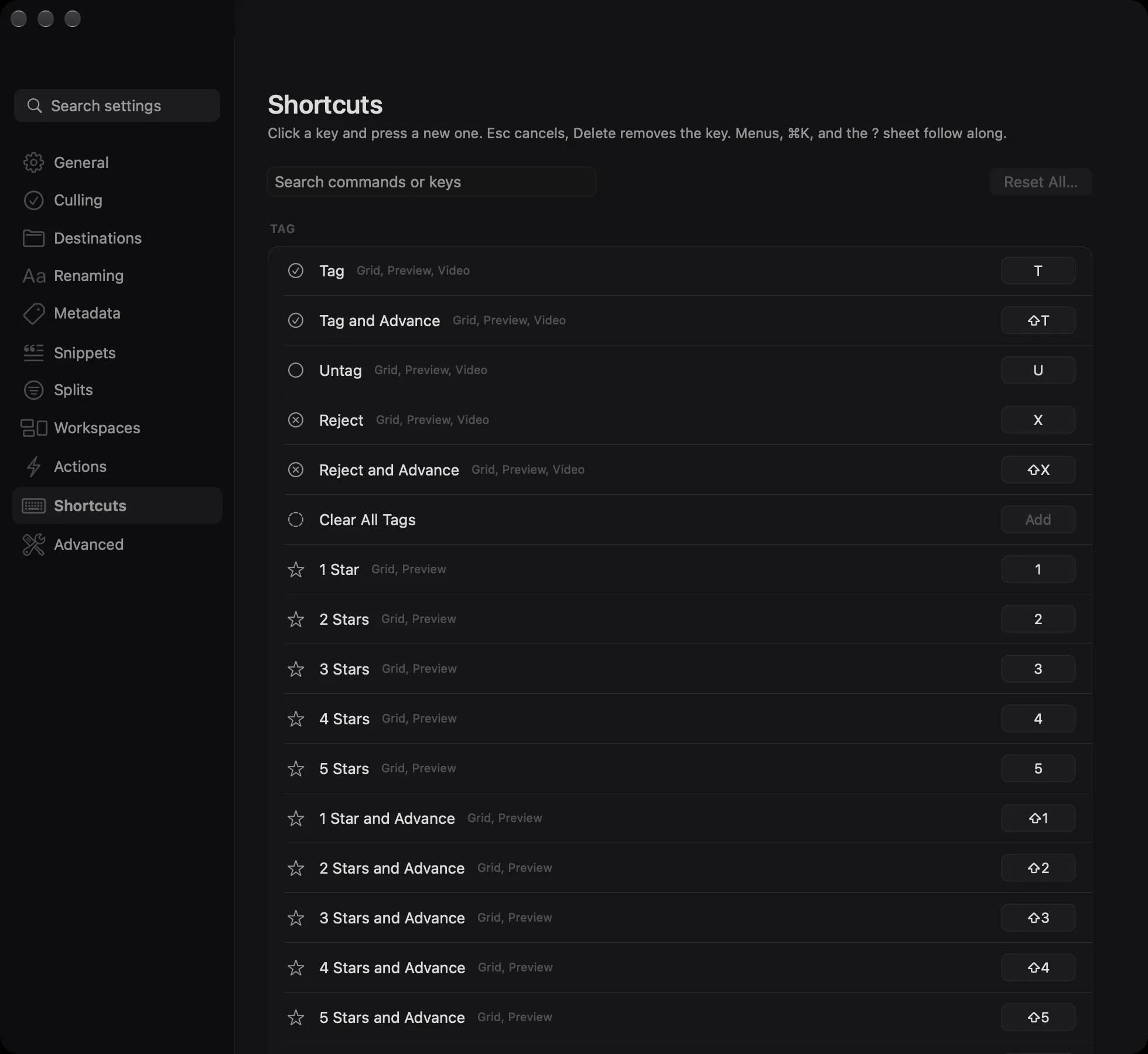
If the key is already taken by something that overlaps, Ingest names the other command and offers to move the key across. It refuses a key that is fixed, and it refuses the bare keys that move you around, because the app consumes those before any command sees them.
A changed key follows everywhere at once. The menus, the palette, the ? sheet, and the hold overlay all read from the same table, so there is no second place to update and nothing to get out of step. Reset All puts every key back.
Commands without a key
Plenty of commands have no key, on purpose. They are all in the palette. Press ⌘K and type a few letters of the name, an alias, or the category.
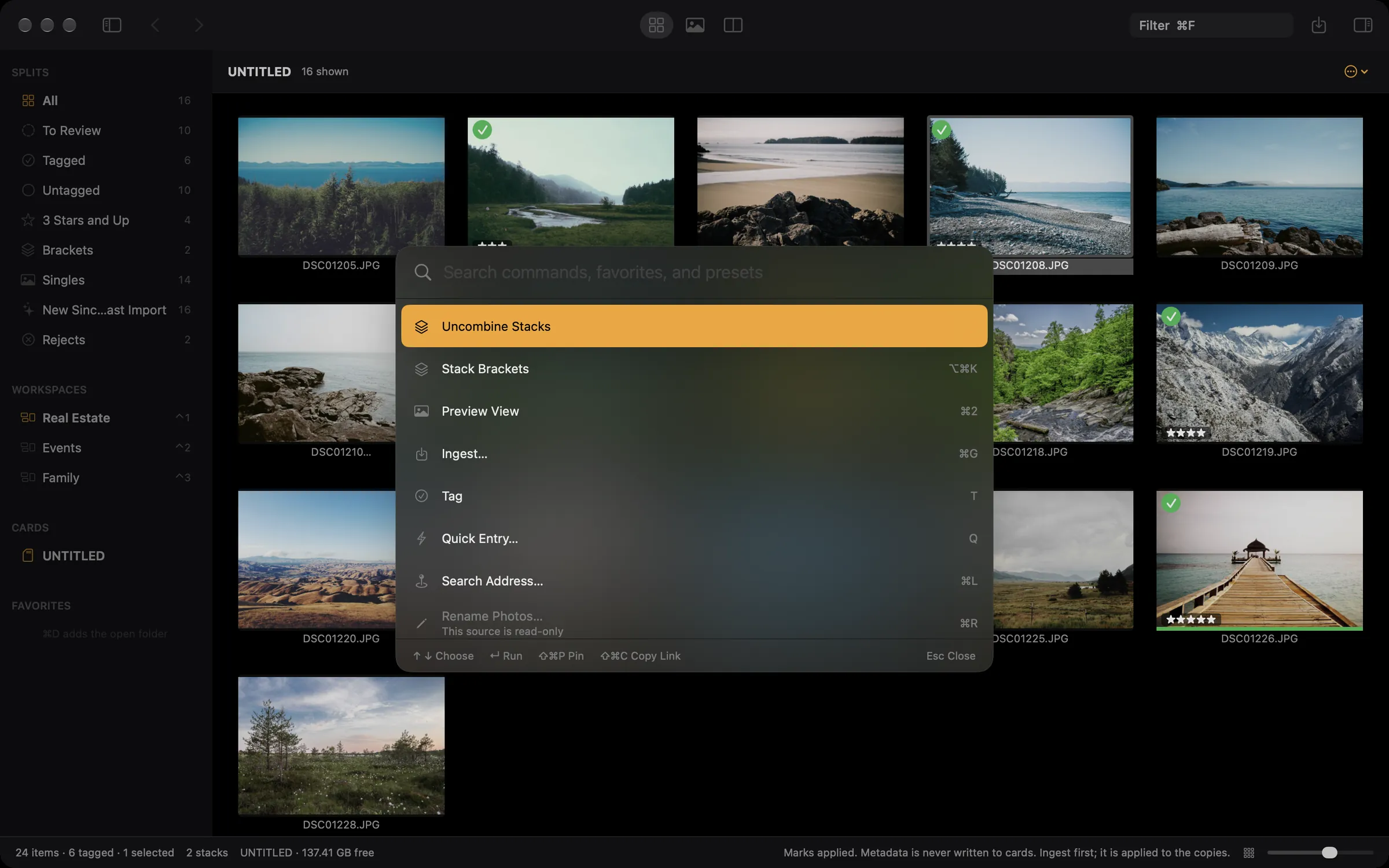
The palette also lists the things that come and go: your favourites, workspaces, splits, metadata presets, actions, and recent folders. ⇧⌘P pins whatever is highlighted to the top of the list. ⇧⌘C copies a link that runs it, which is how the URL scheme is meant to be discovered.