
The Reading Habit user guide
Make reading a daily habit.
Add the book you’re reading, mark the days you read, and choose a monthly book goal.
Reading Habit 1.0 is on the App Store. It is a free download for iPhone and iPad, requiring iOS 27 or iPadOS 27. A Mac version is in development and not yet available. Get it on the App Store. Version 1.0.1 is waiting for App Review. Its interface changes are identified below, and the screenshots preview it with sample data.
Your first book, your first day
Install Reading Habit from the App Store, open it, and follow or skip the welcome. You don’t need to create an app account.
- Choose +, then Add Book.
- Enter a title or ISBN, choose Reading, and select a search result. To save exactly what you typed, choose Add.
- When you’ve read, go to Journal and choose Read today beside the book.
That’s a complete reading record for the day. You don’t have to enter a page number, run a timer, or finish the book.
Find your way around
- Journal is your current reading shelf, daily rhythm, and dated activity.
- Library holds your books, To Read list, recommendations, and series.
- Stats shows daily consistency, monthly goals, yearly progress, and earlier records.
- Settings is the gear button. It includes goals, appearance, help, and library files.
This guide says “choose” for actions you tap on iPhone or iPad. Navigation adapts to your screen size. Barcode scanning requires a supported iPhone or iPad.
Build your library
Search by title, author, or ISBN
- Choose + → Add Book.
- Enter a title or ISBN in the title field. Add an author to narrow a title search, or search with an author’s name. Use the keyboard’s search action if needed.
- Choose the book’s starting status: Reading, To Read, or Finished. For a book you’ve already read, set its finish date.
- Select the matching result from Open Library to add it.
Add a book manually
In Add Book, enter the title and any author or recommendation details you know. Choose a status, then Add in the toolbar. A title is enough; you can fill in more later. This is also useful when a book isn’t in the search results.
Scan a barcode
On a supported iPhone or iPad, open Add Book → Scan Barcode, allow camera access, and point the camera at the book’s barcode. The app looks up its ISBN. If scanning isn’t available, type the ISBN or add the book manually.
Add from a book link
- Open a book’s web page, use the system share sheet, and choose Reading Habit. You can also copy the link and choose + → Paste Link in the app.
- In Add from Link, look up the link and review the title, author, and any matching books.
- Choose Add to: Currently Reading, To Read, or My Library. Choose Your format if you know it.
- Use the corresponding save action: Start Reading, Save to Read, or Add to My Library. After sharing, open Reading Habit to finish adding any queued capture.
If lookup fails, use Try Again, Enter Details, or Save Link for Later. Saved links appear in Pending captures in Library. Your destination and format are kept. If the book already exists, review the proposed changes; the app keeps its history and notes.
Books only. Link capture is for book pages, including supported Amazon book links. Reading Habit doesn’t save articles as read-it-later items. Some pages can’t supply enough information; manual entry is always an option.
Choose what comes next
Open Library and switch between To Read, Books, Recommendations, and Series.
In 1.0.1: swipe the row of tabs to see more sections. Open Filters beside the tabs to choose who recommended a book. In Books, the same menu also filters by reading status. At larger text sizes, Filters sits below the tabs.
Arrange your To Read list
- Choose Library → To Read.
- Drag books into your reading order. You can also use their accessible Move earlier and Move later actions.
- Use search and the available filters to narrow the list, including who recommended a book.
- Open a book when you’re ready to begin and change its status to Reading.
Journal initially shows two current books. Choose Show all for a larger shelf. Drag current books to arrange that shelf, or use their accessible move actions.
Find and update a book
Use Books for the broader library and its search, filters, and ordering controls. Open a book to change its reading status, edit its details, and find its activity. Ownership and reading status are separate: a book can be borrowed and currently reading, for example.
Choose Details on the book page to edit its rating, book-level format, length information, display unit, and ownership. Per-reading progress settings live separately in Reading details.
Use Notes for things you want to remember and Review for what you made of the book. These are part of your private library, not a public review feed.
Covers, sharing, and removal
Open the book’s More menu to choose Replace Cover and pick your own image. If you’ve added one, Remove Your Cover removes that custom image. Share Book opens the system share sheet with a link to the book.
To remove a book, choose More → Delete Book and review the confirmation. This removes the book and its reading record; export a JSON backup first if you want to keep a copy.
In Settings → Set aside after, choose how long a book can go without progress before it is set aside, or choose Off. If a book leaves your current shelf, look for it in Library’s set-aside filter.
Keep the person behind the book
Save a recommendation before looking it up
- Choose + → Save recommendation.
- Enter the Book or series title. Set Kind to Book, Series, or Not sure.
- Add who recommended it, or choose a person you’ve already saved. The person is optional.
- Under More details, add What they said and a Suggested starting book if useful.
- Choose Save recommendation.
You don’t have to find a catalog match first. Later, open the record in Library → Recommendations to edit it or connect it to a library book. Use Choose a library book for one you already have, or Find or add a book.
Browse by person
Use the Recommended by filter to find books passed along by a particular person. In 1.0.1, it is inside Filters. People who recommended books opens the people you’ve saved. If two entries represent the same person, their detail view offers Merge with another person; recommendations keep their original attribution and move to the person you choose.
Keep a series and its starting advice
You can create a series while saving a recommendation: choose Series as its kind, and use New series when selecting among saved series. Open it later through Library → Series.
The series page keeps Where to start separate from Books in this series. Use Choose a library book to add a saved book, then set its Position in series if known. The list contains the books you’ve added; it isn’t an automatically complete bibliography. Keep another recommendation preserves another person’s advice.
Record as much as you need
Check in for today
In Journal or a current book’s detail page, choose Read today. It records a reading session for that book. It doesn’t finish the book or measure how long you read.
To undo an eligible check-in, choose the recorded check. Progress updates are kept. Multiple entries or books on the same reading day still count as one day in your daily reading total.
In 1.0.1: a plus marks an unrecorded book in the compact Journal list. A gold check means reading has been recorded today. The weekly calendar shows dates beneath the weekday names.
Track your position
- Open the book and expand Reading details.
- Turn on Track progress for this reading.
- Choose the format and display units. Enter the relevant total length in Progress settings and choose Save lengths when required.
- Choose the position number, enter your current position, and choose Log. You can also drag the progress bar and release to record the position. Depending on the available lengths, you can use percent, pages, chapters, or time.
Time is a position in an audiobook, not a running session timer. When switching between formats, translated positions are approximate. You can leave progress tracking off and keep using Read today.
Finish a book
When you finish, choose Finished from the book’s status control. If tracking progress reaches the end, follow the finish prompt. The finish belongs to that reading and its finish date. A check-in or an intermediate progress update doesn’t create an extra finish.
If you stop without finishing, choose Did Not Finish from the status options. It doesn’t earn a completed-reading contribution toward your goals.
Every reading has its own record
Open a book and find Reading activity. Choose an individual reading to see its days and format activity. A dated event in Journal also opens that book’s reading history.
Correct an entry
- Open the reading you want to correct.
- Use Correct a reading day to select the relevant day and format.
- Choose Mark as read to add a missed check-in or Remove check-in to remove one. Choose a day within the reading, through today.
Use the individual reading’s format controls to correct its format. To adjust the dates exposed on the book page for its current or most recent reading, open Reading details → Reading dates and edit Started or Finished when available. The individual history view shows earlier readings’ dates but doesn’t offer date pickers for every past reread. Changing dates recalculates the journal and affected statistics; removing a check-in keeps progress entries.
Read a book again
On a finished book, choose Read again. This starts a separate reading and preserves the earlier one. Record the new reading’s days, format, and optional progress as usual.
Every completed reread contributes separately to monthly and yearly goals. A book finished twice is two completed readings, while the number of distinct books remains one.
Understand the journal and streaks
Journal groups reading sessions, progress updates, and finished readings by date. Logging times appear when stored; older entries that contain only a date don’t show an invented time.
Use Display, the sliders control beside the first date, to show or hide covers in the activity list. Current books keep their covers. Swipe the weekday marks to browse earlier weeks. Choose a week or the streak headline to open daily Stats; choose the monthly summary to open the monthly goal.
Three daily measures
- Current streak: the ongoing run of reading days, including automatically protected rest days.
- Best streak: your longest protected run in the record.
- Consecutive days read: actual consecutive reading days, without rest-day protection.
How rest days work
Seven consecutive reading days earn one rest day. You can hold at most one. When you miss a day, an available rest day is spent automatically to protect your streak; there is no button to spend it. A protected day doesn’t become an actual day read.
For example: after seven consecutive reading days, you have one rest day. If you miss the next day, it protects your streak. Another missed day without a banked rest day breaks the streak.
The reading day ends at 4 a.m.
Reading after midnight but before 4 a.m. can belong to the previous reading day. Today stays open until that boundary, so an unread day doesn’t break the streak prematurely. Finished books use their finish date.
Set goals that fit your reading
Open Stats for daily, monthly, and yearly summaries. Choose Monthly goal or Books this year to explore the detail and edit the target. You can also change targets in Settings.
| Goal | Starting target | What contributes |
|---|---|---|
| Monthly | 5 | Completed readings at each book’s weight |
| Yearly | 60 | Completed readings at each book’s weight |
Existing saved targets are preserved. Monthly and yearly targets are independent; changing one doesn’t set the other. Use 0 to turn either goal off.
Give a book a weight
- Open a book’s detail page.
- Choose Counts as.
- Choose 1, 1.5, 2, 3, or a custom positive number.
That weight applies to every completed reading of the book, including earlier finishes and rereads. Changing it recalculates those contributions. It doesn’t create additional reading days or additional actual finishes.
For example: finishing three readings weighted 1, 1, and 1.5 gives you 3.5 toward your goal and 3 actual finished readings. Finishing that 1.5-weight book again contributes another 1.5.
Monthly streaks
A month becomes successful when its weighted finishes reach its target. A successful current month extends the monthly streak immediately. A current month that hasn’t reached its target doesn’t break your previous streak while the month is still open.
Once a month ends, missing the target breaks the monthly streak. A completed month with the goal off earns no streak credit and also breaks the run. Stats shows current and best monthly streaks. In 1.0.1, both are explicitly labeled in months.
What changes your history?
Monthly target changes apply to the current and future months. Completed months retain their targets. Earlier history uses your initial monthly target as a retrospective baseline.
Correcting a finish date, correcting a completed reading, or changing a book’s weight recalculates historical results. A past month can therefore become achieved or missed even though its target stays the same. Annual progress uses your yearly target and the same book weights, with actual finished-reading counts alongside it.
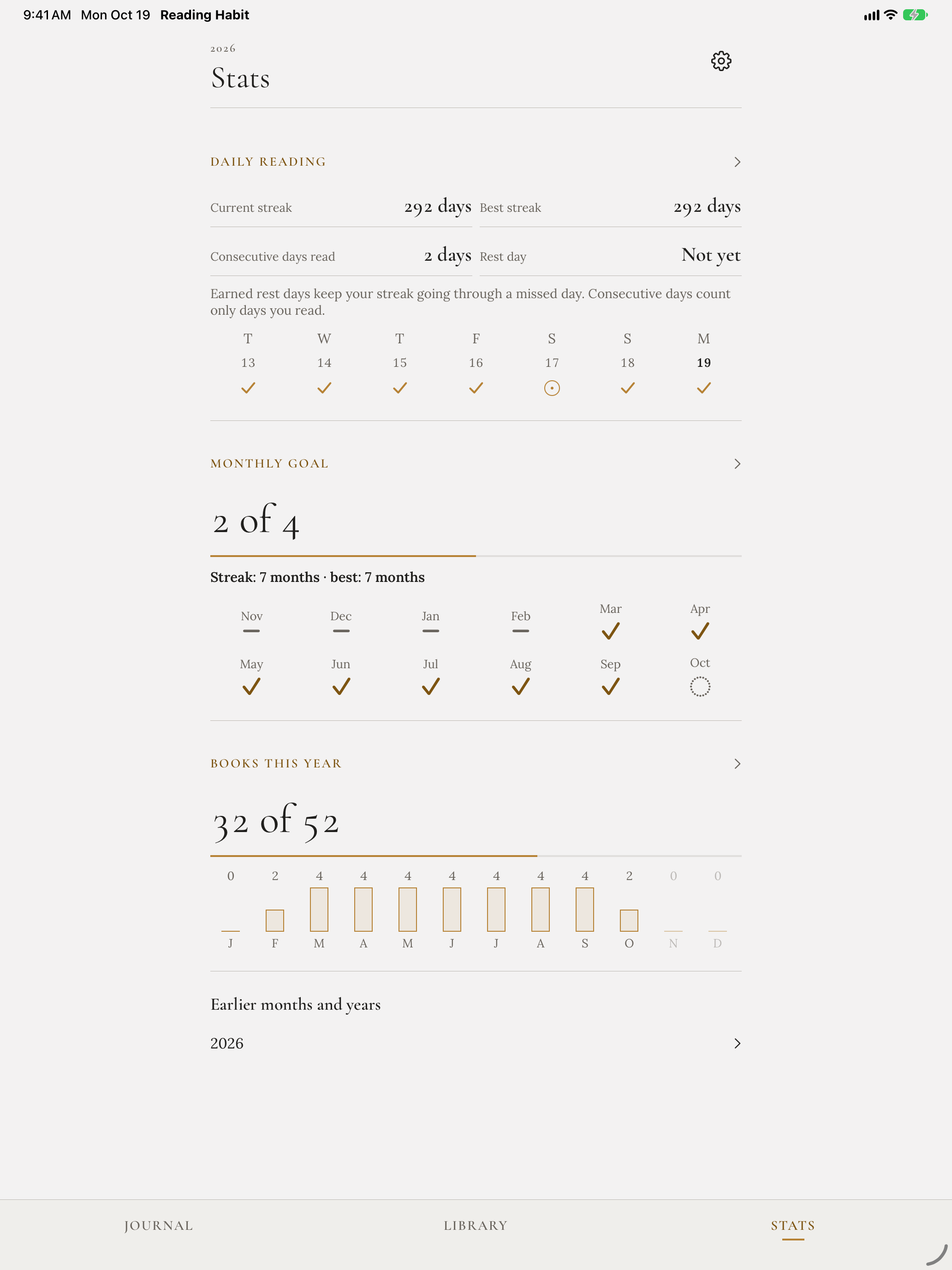
Daily reading and monthly goals are separate measures.
Sync, back up, and bring your books along
iCloud sync
Your library is stored on your device and syncs through your private iCloud database when iCloud is available. Use the same Apple Account with iCloud enabled on your devices. There is no separate Reading Habit account.
Sync needs connectivity and may take time. Keep a JSON backup before moving to a new device.
Export a backup
- Open Settings → Export Library → As JSON.
- Save the file in a location you can find again, such as a folder in Files or on your Mac.
- Keep that copy before changing builds or moving devices. Export a fresh copy as your reading record grows.
Restore a JSON backup
- Open Settings → Restore backup.
- Select your Reading Habit JSON backup.
- Review the record counts, then choose Restore backup to confirm.
Restore adds missing records and keeps existing ones. It isn’t a replacement of your current library, and it doesn’t overwrite an existing record to roll back an edit. CSV exports are for spreadsheets; use JSON when you want a Reading Habit backup.
Import from Goodreads or StoryGraph
- Obtain your library’s CSV export from Goodreads or StoryGraph and save the file on your device.
- In Reading Habit, choose Settings → Import from CSV and select it.
- Review the preview and its reading statuses. Nothing is added until you confirm.
- Choose the import action, wait for the lookup and import to finish, and review the result before choosing Done.
Import accepts the supported Goodreads and StoryGraph formats, not any spreadsheet that happens to end in .csv. The result reports books added, skipped, and finishes without dates. Check imported history before relying on historical goals.
Export to a spreadsheet
Under Settings → Export Library, choose As CSV for books. Separate exports are available for readings, reading activity, recommendations, people, series, and series order. Choose the data you need, then save or share the file using the system sheet.
Appearance, widgets, and shortcuts
Light and dark appearance
The app follows your system’s light or dark appearance, with gold reading marks and your books’ original cover colors.
Keep help close
Open Settings → How to use Reading Habit for the offline help guide and its option to replay the welcome. You don’t need this website to read the in-app help.
Add a widget
On iPhone or iPad, open the Home Screen’s widget gallery and search for Reading Habit. Choose Reading Days for your reading marks or Add a Book to open book entry, then place the widget. Available placements depend on the platform.
Open the app at least once after installation so it can prepare the library. Widgets share its reading record and use the same daily rules. The Add Book control is also available in Control Center, where it can be added from the controls gallery and assigned to the Lock Screen or the Action button on devices that have one. It opens Reading Habit ready to add a book and shows nothing from your library.
Use Shortcuts and Siri
In Apple’s Shortcuts app, search for Reading Habit when adding an action. Choose the action and supply the requested book or person. Available actions include Read Today, Read Again, Add Book, Log Progress, Finish Book, Open Book, Save Recommendation, and Recommendations.
You can also use the app’s Siri phrases, such as “Mark today as read in Reading Habit” or “Add a book to Reading Habit.” Answer any follow-up question to choose the book. Some actions open the app to finish the task.
Troubleshooting
I can’t find a book in search.
Try its ISBN, use a shorter title, or add the author. Search uses Open Library and needs a connection. If it still doesn’t appear, enter the title and author and choose Add to save it manually.
A shared book hasn’t appeared.
Open Reading Habit after sharing, then check Library → Pending captures. Retry the lookup, enter the details, or finish the saved capture. Check the destination you selected: To Read, Currently Reading, and My Library put the book in different places. Search Books before adding another copy.
The barcode scanner is missing or the camera is off.
Scanning appears only on supported iPhones and iPads. If camera access was denied, enable it for Reading Habit in system Settings. You can always type the ISBN or add the title manually.
My check-in appears on yesterday’s date.
The reading day turns at 4 a.m., so a check-in after midnight can belong to the previous day. Use the individual reading’s day-correction controls if you need to correct the record.
My streak and consecutive days read don’t match.
Current and best streaks include protected rest days. Consecutive days read includes actual reading only. Check Stats → Daily reading to see both and any available rest day.
My goal total is different from the number of books finished.
Goals use book weights, and completed rereads count separately. A 1.5-weight finish contributes 1.5 toward the goal but is one actual completed reading. Check Counts as on the book and the finish dates in its reading history.
A past month changed after I edited a book.
Corrections and weight changes recalculate the book’s completed readings. Past monthly targets stay fixed, but the result against them can change. A changed finish date can move credit into another month.
I can’t choose pages, chapters, or time.
Open Reading details, enable Track progress, and check the relevant total length under Progress settings. Save positive whole-number lengths where needed. Units depend on those totals; percent remains available.
A current book is no longer on the shelf.
Choose Show all in Journal and check Library’s filters. The Set aside after setting can move a book without recent progress out of the active shelf. Open it in Library and return its status to Reading when you want to resume.
My devices show different libraries.
Check that both use the same Apple Account, have iCloud available, and can connect to the internet. Open the app on both and allow time for sync. Before removing an installation or moving to a new device, export JSON from the device that holds the complete library.
My file won’t import or restore.
Use Restore backup for Reading Habit JSON. Use Import from CSV for a supported Goodreads or StoryGraph export. A Reading Habit spreadsheet export isn’t a JSON backup. If the original export was modified in a spreadsheet editor, try a fresh original file.
How do I report a problem?
Open a GitHub issue with the screen, what you tried, what happened, and the app and operating system versions. GitHub issues are public; omit your library backup and personal information. A GitHub account is needed to submit an issue, but not to read this guide.