 CodeShot
Screenshots for your coding agent.
Capture an area, a window, or a scrolling page on your Mac. CodeShot saves the PNG and copies its file path. Paste it into your coding agent as is, or add a note about what you want to change.
Free and open source · macOS 14 or later
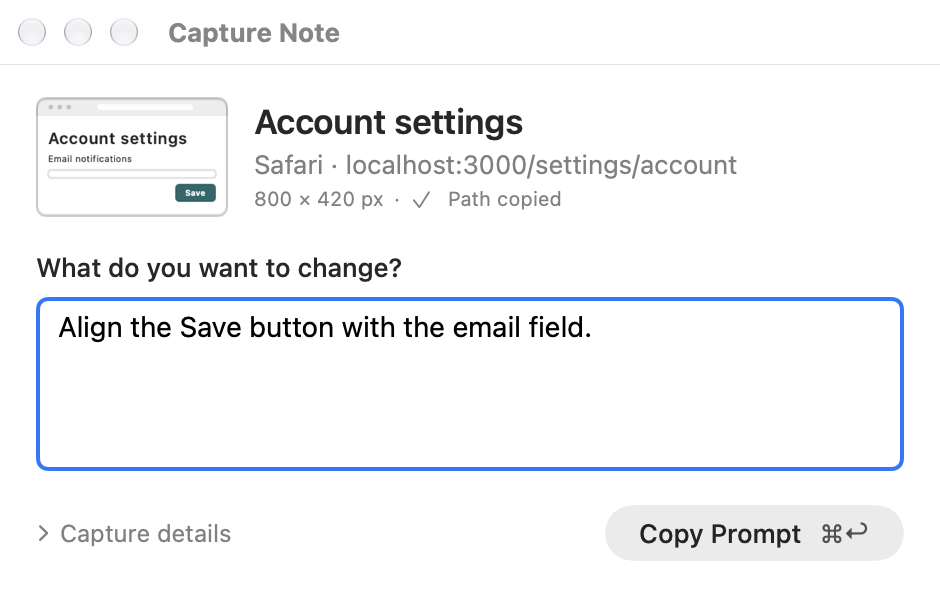
Capture Palette
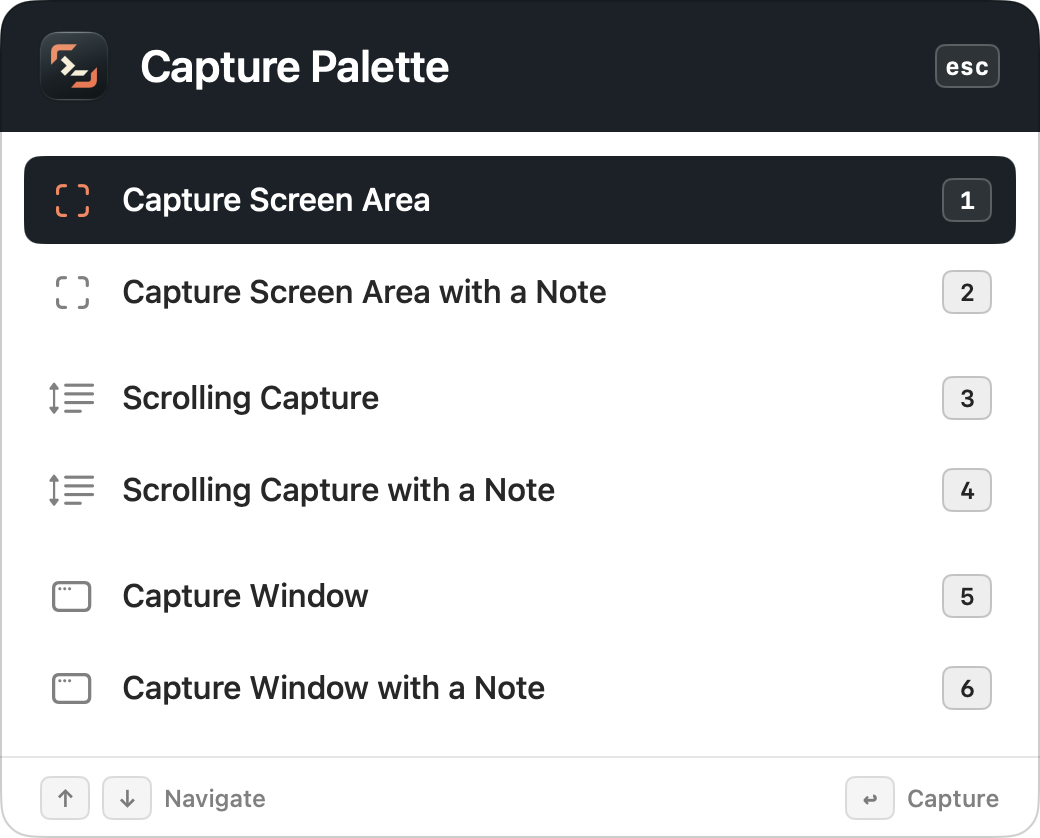
- Choose a capture. Open the palette from the menu bar or with your shortcut. Press a number, or use the arrow keys and Return.
- Add a note if you need one. Choose the second command in a pair, type your instructions, and press ⌘ Return. A quick capture copies immediately.
- Paste into your agent. It gets the file path, image dimensions, and any available app, window, or browser details. If your agent runs in a web chat, attach the PNG so it can see the image.
Settings
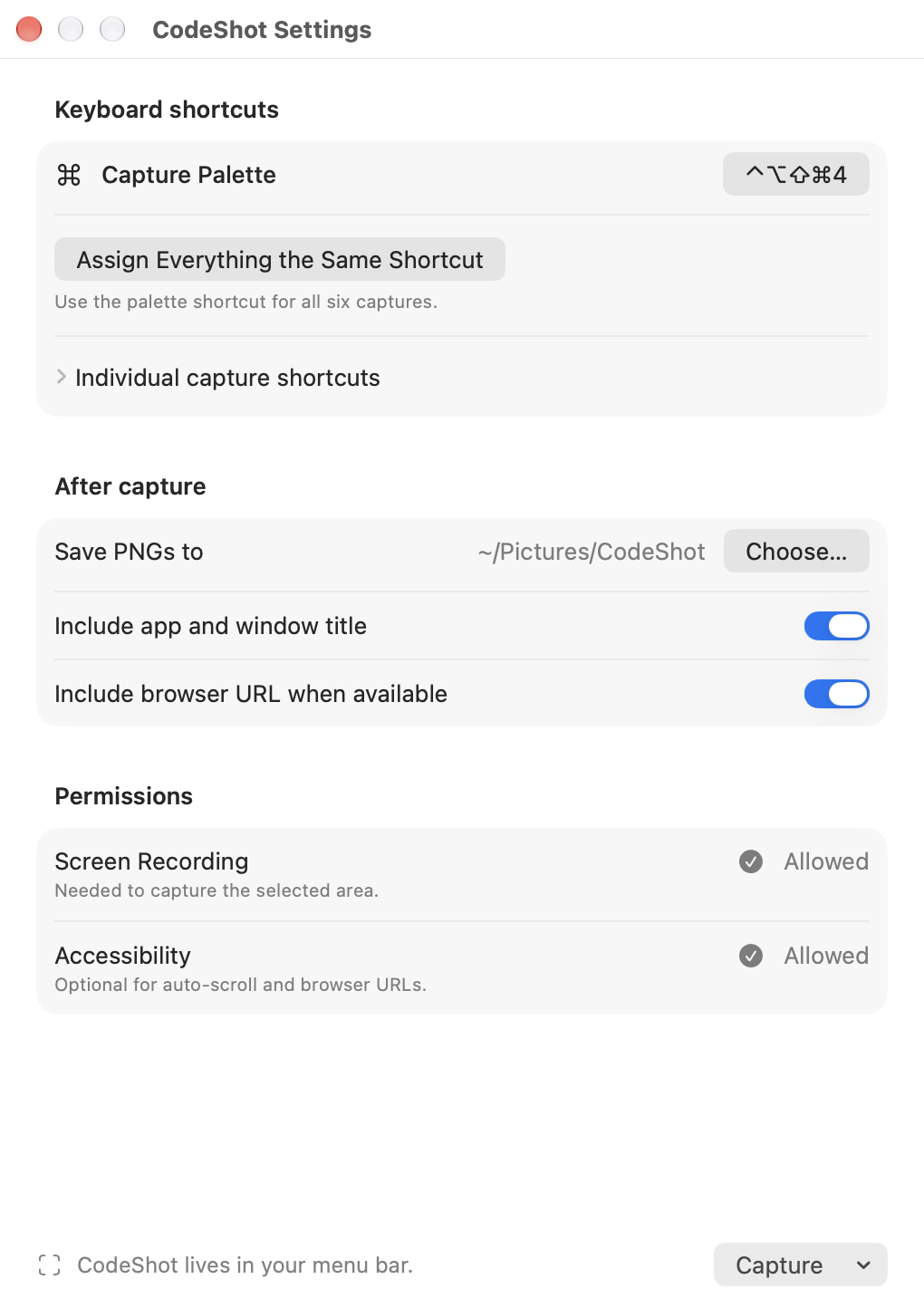
Use one shortcut for the whole palette or set a different shortcut for each capture. Choose where PNGs go and which details get copied with the path.
Working with several screenshots
CodeShot works best with a clipboard manager when you have several things to point out. Take each screenshot, copy its note, then open your clipboard history and paste the entries you want into the same conversation.
I use Raycast’s Clipboard History. Alfred’s Powerpack has clipboard history too, and Flycut is a simple clipboard manager I used for years.
Installing and updating
Open the downloaded disk image and drag CodeShot to Applications. On first launch, choose your screenshot folder and allow Screen Recording. Accessibility enables auto-scroll and browser URL capture.
To update, quit CodeShot from the menu bar and replace it with the latest download. Runs on Apple silicon and Intel Macs. Release notes